
How to Add Animated Telegram & WhatsApp Group Buttons in WordPress 2025
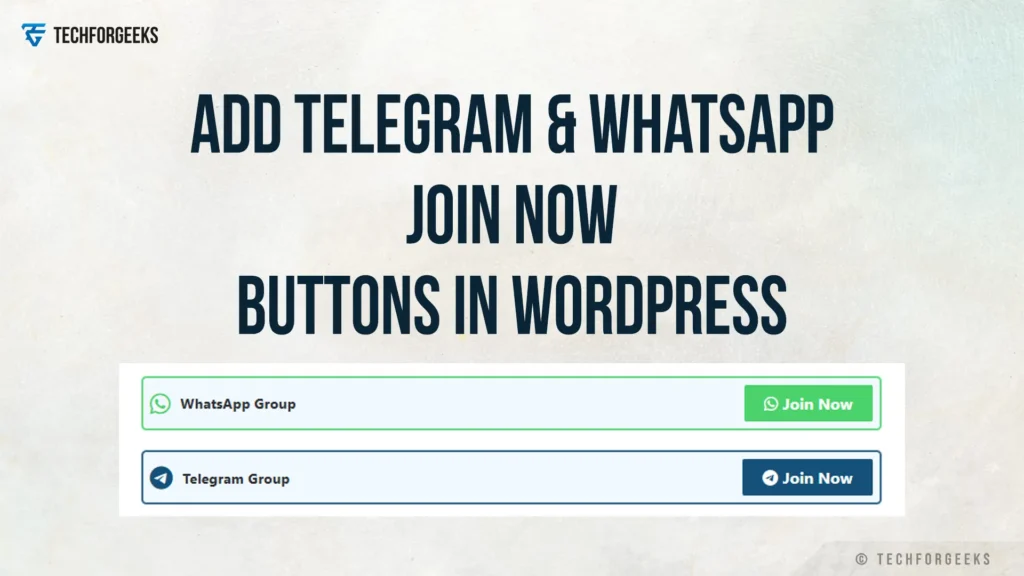
If you are running a WordPress site and want an easy way for people to reach you, adding animated WhatsApp or Telegram buttons can be very helpful. Many bloggers use this to share updates, links, and new posts with their readers. In this guide, I’ll show you the simple steps so you can add these buttons to your site in just a few minutes.
How to Add Telegram & WhatsApp Buttons
Step 1: Install the Ad Inserter Plugin
Log in to your WordPress dashboard and go to Plugins → Add New. Search for Ad Inserter, install it, and activate the plugin.
Step 2: Add the Button Code
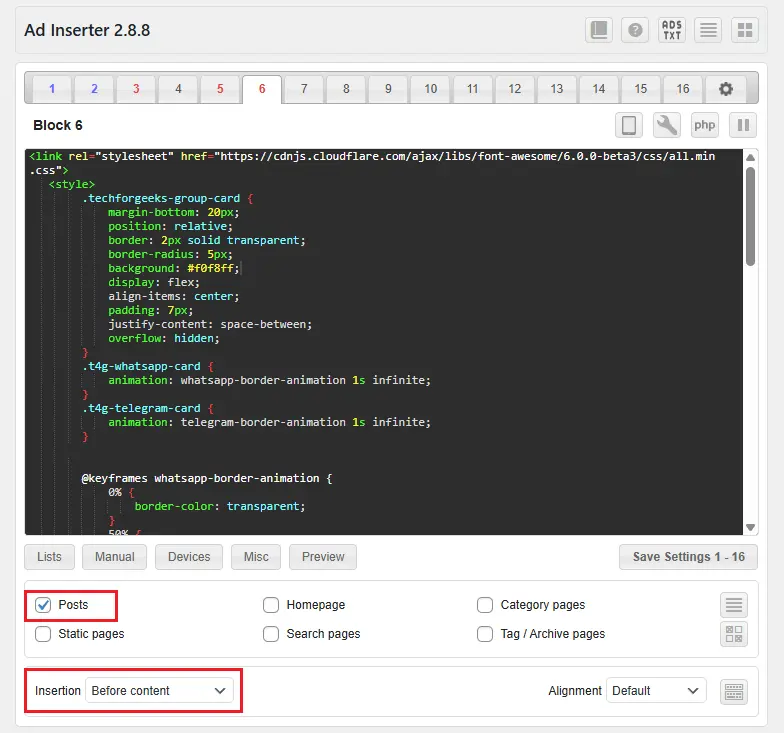
Open Ad Inserter settings. You’ll see a few blank boxes where you can paste the code I’ve shared below. Make sure to replace the links “#” with your own Telegram and WhatsApp URLs; otherwise, the buttons won’t redirect correctly.
Step 3: Enable the Block on Posts
Now select where you want the buttons to appear. Tick Posts, choose Before Content, and then hit Save. After that, open any of your posts, and you’ll see the Telegram and WhatsApp buttons showing up perfectly.
Demo
<link rel="stylesheet" href="https://cdnjs.cloudflare.com/ajax/libs/font-awesome/6.0.0-beta3/css/all.min.css">
   <style>
   /*--------------------------------------------------------------
  Project      : Telegram & WhatsApp Group Buttons
  Description  : Main stylesheet
  Author       : TechforGeeks Team
  Website      : https://www.techforgeeks.com/
--------------------------------------------------------------*/
        .techforgeeks-group-card {
            margin-bottom: 20px;
            position: relative;
            border: 2px solid transparent;
            border-radius: 5px;
            background: #f0f8ff;
            display: flex;
            align-items: center;
            padding: 7px;
            justify-content: space-between;
            overflow: hidden;
        }
        .t4g-whatsapp-card {
            animation: whatsapp-border-animation 1s infinite;
        }
        .t4g-telegram-card {
            animation: telegram-border-animation 1s infinite;
        }


        @keyframes whatsapp-border-animation {
            0% {
                border-color: transparent;
            }
            50% {
                border-color: #25d366;
            }
            100% {
                border-color: transparent;
            }
        }
        @keyframes telegram-border-animation {
            0% {
                border-color: transparent;
            }
            50% {
                border-color: #004F7A;
            }
            100% {
                border-color: transparent;
            }


        }
        .techforgeeks-link {
            display: inline-flex;
            align-items: center;
            justify-content: center;
            font-size: 1rem;
            font-weight: bold;
            text-decoration: none;
            padding: 5px 20px;
            border-radius: 2px;
            flex-shrink: 0;
            transition: all 0.3s ease-in-out;
            color: white !important;
        }
        .techforgeeks-link i {
            margin-right: 5px;
        }
        .t4g-whatsapp-card .techforgeeks-link {
            background: #25d366;
        }
        .t4g-telegram-card .techforgeeks-link {
            background: #004F7A;
        }

        }
        .techforgeeks-link:hover {
            transform: scale(1.05);
        }
    </style>
    <div class="techforgeeks-group-card t4g-whatsapp-card">
        <span style="display: flex; align-items: center;"><i class="fab fa-whatsapp"
                style="font-size:24px;color:#25d366;"></i>
            <span style="font-weight: bold; margin-left: 10px; font-size: 0.9rem !important;">WhatsApp Group</span>
        </span>
        <a class="techforgeeks-link" href="#" rel="nofollow noopener noreferrer"
            target="_blank">
            <i class="fab fa-whatsapp"></i> Join Now
        </a>
    </div>
    <div class="techforgeeks-group-card t4g-telegram-card">
        <span style="display: flex; align-items: center;"><i class="fab fa-telegram"
                style="font-size:24px;color:#004F7A;"></i>
            <span style="font-weight: bold; margin-left: 10px; font-size: 0.9rem !important;">Telegram Group</span>
        </span>
        <a class="techforgeeks-link" href="#" rel="nofollow noopener noreferrer"
            target="_blank">
            <i class="fab fa-telegram"></i> Join Now
        </a>
</div>Conclusion
That’s all you need to add Telegram & WhatsApp buttons to your WordPress website. I’ve shared the complete steps, the required code, and the simplest method to get everything working smoothly.
If you found this guide helpful, do subscribe to our web push notifications. You’ll get instant alerts whenever we publish new tutorials, tools, or WordPress tips. Stay updated and keep improving your website!

